Angolo di Windows
Experiencing a cyberattack, such as the one carried out by the “QuickMailChecker_bot” bot, can create a strong sense of vulnerability. Seeing your emails disappear or be replaced by incomprehensible messages is alarming, but it is important to stay calm: there are precise, tried-and-tested technical procedures for resolving the situation.
The aim of this guide is not just to remove traces of the intrusion, but to turn this incident into an opportunity to make your account much more secure than it was before. We will not simply clean the surface; we will close every door that was left open. The essential first step is to identify exactly what we are dealing with.
Identifying the Signs of the Attack
A bot attack is not always silent; it often leaves clear traces in the settings and contents of the mailbox inbox. Here are the typical signs reported in cases of compromise:
- Subject Line Replacement: Many emails have the specific string in the subject line: “QuickMailChecker_bot — All-In-One Checker (Hotmail • MIX • Xbox) • Auto Login”.
- Obscured Content: When you open the messages, you cannot read the original text; instead, a static screen or an interface generated by the bot appears.
- Foreign Language Settings: System folders (such as Inbox or Trash) or messages appear translated into foreign languages, frequently Vietnamese.
- Unfamiliar Items: New calendars, tasks in the “To Do” list, or mail rules that the user never created may suddenly appear.
- Missing Mail: The “Inbox” folder may suddenly appear empty because malicious rules move or delete messages as soon as they arrive.
Critical Sign: The most serious symptom of a bot’s presence is being unable to manually delete certain mail rules. They tend to regenerate or appear “locked” even in the web version of Outlook, indicating that a malicious session is still active.
Once you have identified the problem, the absolute priority is to secure the device you use to log in.
Phase 1: Prepare Your Work Environment (Clean the Device)
Before changing your passwords, you need to make sure the “ground” you are working on is secure. If a computer hosts a malicious script, the attacker could intercept your new password the moment you type it.
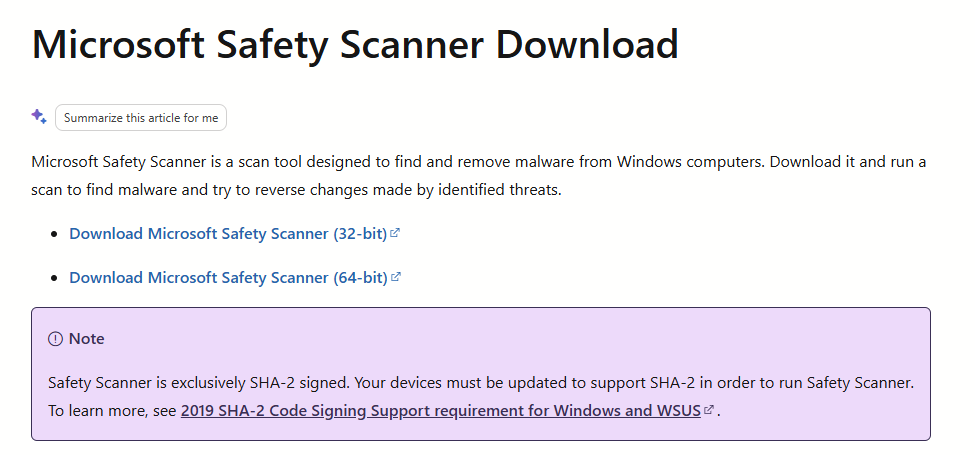
If you use apps such as Outlook Classic or New Outlook, the first step is to temporarily remove your account from the app settings to stop any scripts from syncing. Then run a full scan with the Microsoft Safety Scanner ( 64-bit version).
| Action to Take | Why It’s Essential |
|---|---|
| Remove the account from local apps (Outlook or New Outlook) | Prevents the malicious script from syncing again during cleanup. |
| Run Microsoft Safety Scanner | Provides an in-depth scan specifically for threats targeting Microsoft accounts. |
| Full malware scan –> Guide here | Removes viruses or keyloggers that could steal your new credentials. |
Once the device is clean, it is time to change the “keys to your house.”
Phase 2: Regain Control of Access
Securing security credentials is the cornerstone of protection. Changing your password is not enough; you need to lock down access so that no bot can get back in.
- Change Your Password: Create a complex, unique password (never used for other sites) that is difficult to guess.
- Enable Two-Step Verification (MFA): Set up the Microsoft Authenticator . This is the most powerful tool at your disposal.
- Verify Your Security Security: Check at
account.microsoft.comthat the recovery email and phone number are correct. - Remove your password: removing your password from your Microsoft account can certainly be a security advantage
Technical Insight: Enabling MFA is not just for the future. Often, malicious rules that regenerate stop doing so right after this step, because the attacker loses the ability to validate the new sessions the bot needs to operate.
With access locked down, we now need to remove the “parasites” left behind in the settings.
Phase 3: Deep-Cleaning Operations (Outlook.com)
Sign in to Outlook exclusively through a browser (Outlook.com) and perform these steps in the order shown:
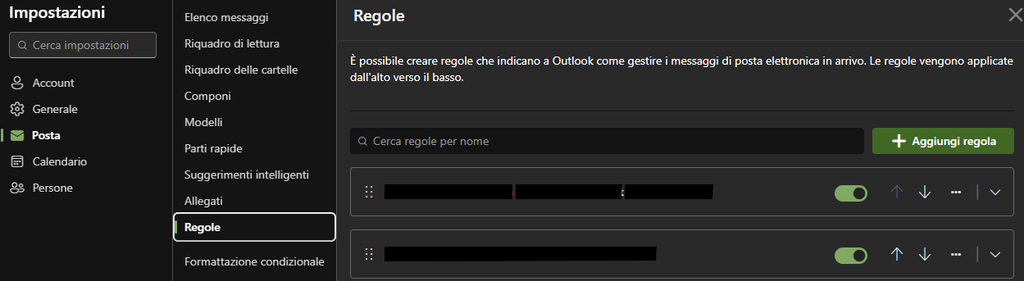
- Rules: Go to Settings > Mail > Rules. Delete every rule you did not create, especially those that move mail or mark it as read.
- Forwarding: Disable any unfamiliar forwarding address. Bots use it to steal your verification codes by sending them to external servers.
- Junk Email Settings: Check the list of trusted senders and remove any suspicious domains added by the bot.
- “To Do” Section: Click the blue checkmark icon on the left and delete any task or list you do not recognize.
- Alias Strategy (Advanced Protection): On
account.live.com, create a new email alias (e.g. nuovonome@outlook.com). Make it yourprimary alias. Then click “Change sign-in preferences” and uncheck the box for the old, compromised alias. This way, the bot will not even be able to attempt to log in using the old address, while you will continue to receive emails as usual.
Technical Note: If a rule cannot be deleted, do not keep trying to force it. This means there are still active sessions. Proceed immediately to the next phase to “kick out” the intruder.
Phase 4: Remove Persistence and Restore Access
We now need to make sure that no device or application belonging to the attacker remains connected to your account.
- Devices: Go to the Devices section of your Microsoft account and remove anything you do not recognize.
- Apps and Services: Sign in to
account.microsoft.com/privacy/app-accessand revoke access for any suspicious apps. - Sign out everywhere: This is the “Master Reset” function. It is located in the advanced security options. Using it will instantly invalidate all active sessions, including the bot’s session that was preventing the rules from being deleted.

- Mail Recovery: Check the “Deleted Items” folder. If it is empty, select the link “Recover items deleted from this folder” to try to restore the messages deleted by the bot.
Important: Remember that these structural changes can take up to 24 hours to propagate across all Microsoft servers and take full effect.
Conclusion: Keep Your Account Secure
You have regained control of your digital space. To prevent this from happening again, follow these three principles:
- Beware of Suspicious Links: Never click on emails asking you to urgently “verify” your account. Always go to the official website yourself.
- Monitor Recent Activity: Check the page
account.live.com/Activityperiodically to see if there have been sign-in attempts from unusual geographic locations. - Keep MFA Enabled: Two-step verification is the impenetrable wall that protects your digital life.
- Remove your password: removing your password from your Microsoft account can certainly be a security advantage
Final Note: If the problem persists after 24 hours, contact official Microsoft support at support.microsoft.com/home/contact. Key tip: If you cannot access your primary account, sign in with another personal Microsoft account (create one if necessary) so you can start a chat with an agent and report that your main account has been compromised.
Security is not just a matter of “how to solve a problem.” It is also about understanding how exposed we are in our everyday use of digital services.
On Substack, I explore these topics in articles and reflections that go beyond the individual news story.
Subscribe to Angolo di Windows on Substack