Alvise C.
BitLocker is a security feature built into Windows 11 that lets you encrypt your computer’s hard drive, protecting data from unauthorized access. Where can you find BitLocker?
In recent times, encryption has become a vital aspect of data security. One of the best-known encryption tools in Windows is BitLocker. This is a full-disk encryption tool built into Windows operating systems. It ensures that unauthorized people cannot access a protected drive.
In this article, we’ll find out where BitLocker is located in Windows 11 and how to enable it for better data protection.
Where to find BitLocker
First, it’s important to note that BitLocker isn’t available in all editions of Windows 11. Only Windows 11 Pro and Windows 11 Enterprise are available, which means that users with Windows 11 Home edition cannot use it.
BitLocker can be accessed in several ways on supported versions of Windows 11 :
1 File Explorer:
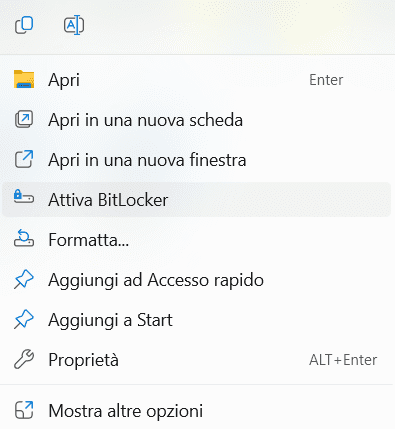
- Open File Explorer.
- Right-click the drive you want to encrypt (for example, C:).
- Select “Turn on BitLocker.
2 Control Panel:
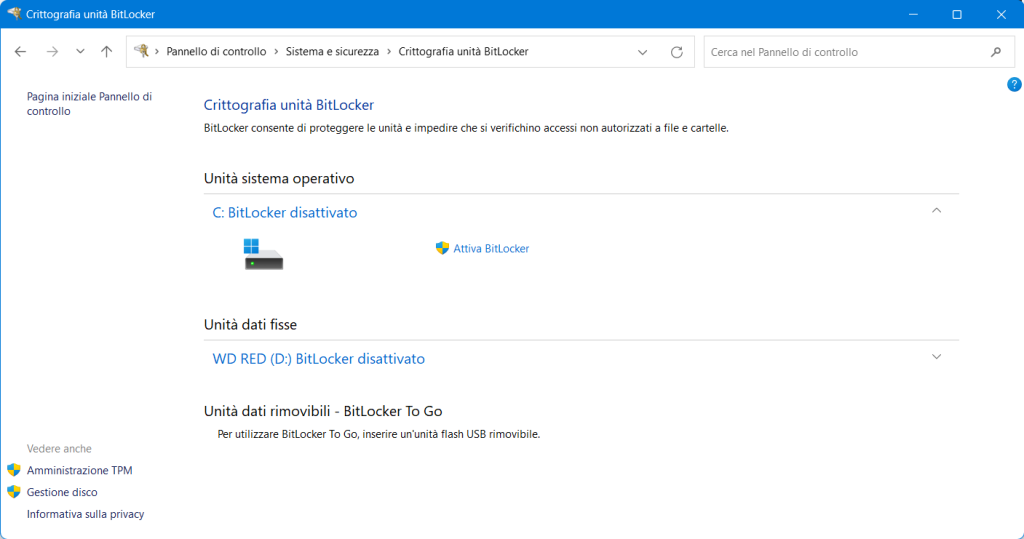
- Open the Control Panel.
- Go to “System and Security”.
- Click “BitLocker Drive Encryption” BitLocker.
- Select the drive you want to encrypt and click “Turn on BitLocker.
3 Settings:
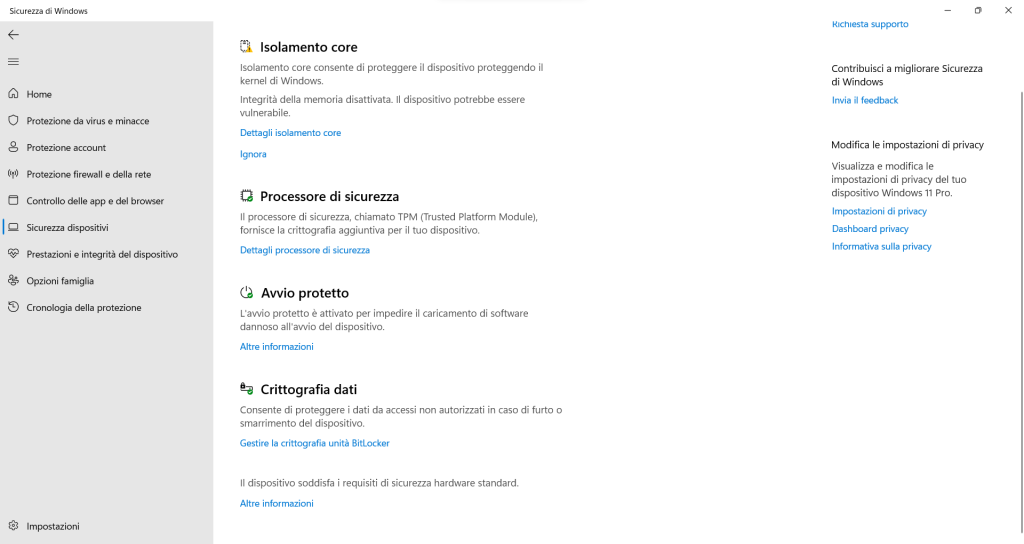
- Open Settings.
- Go to “Privacy and security.
- Open “Security in Windows” and then “Device Security
- Under “BitLocker Drive Encryption” BitLocker“, select the drive you want to encrypt and click “Turn on BitLocker.
How to enable BitLocker:
1 Choose an unlock method:
- TPM: If your computer has a TPM (Trusted Platform Module), you can use it to unlock the drive at startup.
- Password: You can choose a password to unlock the drive at startup.
- Startup key: You can create a startup key on a USB drive or print it on paper.
2 Back up the recovery key:
It’s important to create a backup of the BitLocker recovery key . This key will let you access your data if you forget your password or if the TPM is damaged.
3 Encrypt the drive:
. The encryption process may take some time, depending on the size of the drive.
4 Restart your computer:
Once encryption is complete, you’ll need to restart your computer.
Further information:
- Microsoft provides a support page with information about this: Enable device encryption – Microsoft Support
- You can also find helpful tips and solutions in the Microsoft community: Windows – Microsoft Community
Tips:
- Make sure you have a complete backup of your data before enabling BitLocker.
- Encrypting a large drive can take a long time.
- It’s important to keep the recovery key in a safe place.
If you need help enabling BitLocker or have questions about encrypting your drive, let me know and I’ll be happy to help.
Also, bear in mind that this is only a general overview and that the specific steps may vary depending on your version of Windows 11 and your computer’s configuration.