 Angolo di Windows
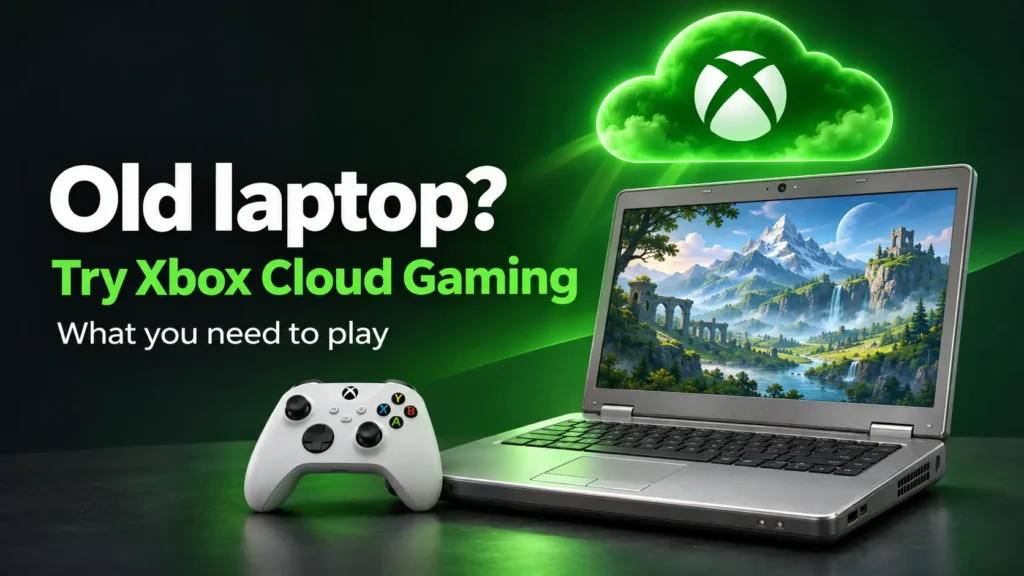
Do you have a laptop that still works well for browsing but struggles as soon as you try to launch a recent game? Before deciding you need another PC for gaming, you can consider streaming.
with Xbox Cloud Gaming the game runs remotely. The laptop has to receive the video stream and transmit your commands: the workload is different from a local installation. However, device compatibility and connection quality remain important. Microsoft also presents the service as an option for using supported older devices.
Why Xbox Cloud Gaming can help a low-powered PC
When you install a game on your computer, the processor, memory, and graphics card have to run it. With cloud gaming, this takes place on remote systems.
The laptop is still busy receiving and displaying the stream. That’s why a PC that can’t run a particular title locally might still be suitable for playing it from the cloud.
“Might” is the word to keep in mind: a computer’s age alone doesn’t predict the result. A browser that already freezes during everyday use is a problem to address before trying it out.
What to check before you start
For browser gaming, Xbox lists supported options such as Microsoft Edge and Google Chrome. You also need a compatible system and a control method supported by the game: a controller, or mouse and keyboard or touch controls in titles that support them. Don’t assume every peripheral works with the entire catalog.
Update your browser and check the device’s current support in theofficial Xbox list. The fact that a browser can open the portal isn’t enough to confirm that the entire system is compatible.
Does the graphics card or the connection matter more?
Cloud gaming changes the potential bottleneck. A powerful graphics card won’t eliminate network problems, while an unstable connection can make even a session started on a recent PC unpleasant.
As a guideline for PCs, Xbox documentation lists 20 Mbps for the best performance. The official guide recommends Ethernet where possible, or Wi-Fi at 5 GHz. This is a starting point, not a guarantee of smooth gameplay.
In addition to speed, pay attention to how long it takes for a command to produce a response on screen. A sharp image and a quick response are two different aspects of the experience.
How to try it out on your laptop
To find out whether your PC is still usable, start with a simple setup.
- Plug in the power adapter and, if available, the Ethernet cable.
- Pause unnecessary downloads and transfers.
- Open Xbox in your browser and sign in.
- Choose a game your account is entitled to access via the cloud.
- Check the available options before confirming any charges.
- Start a session and observe the image, audio, and response to commands.
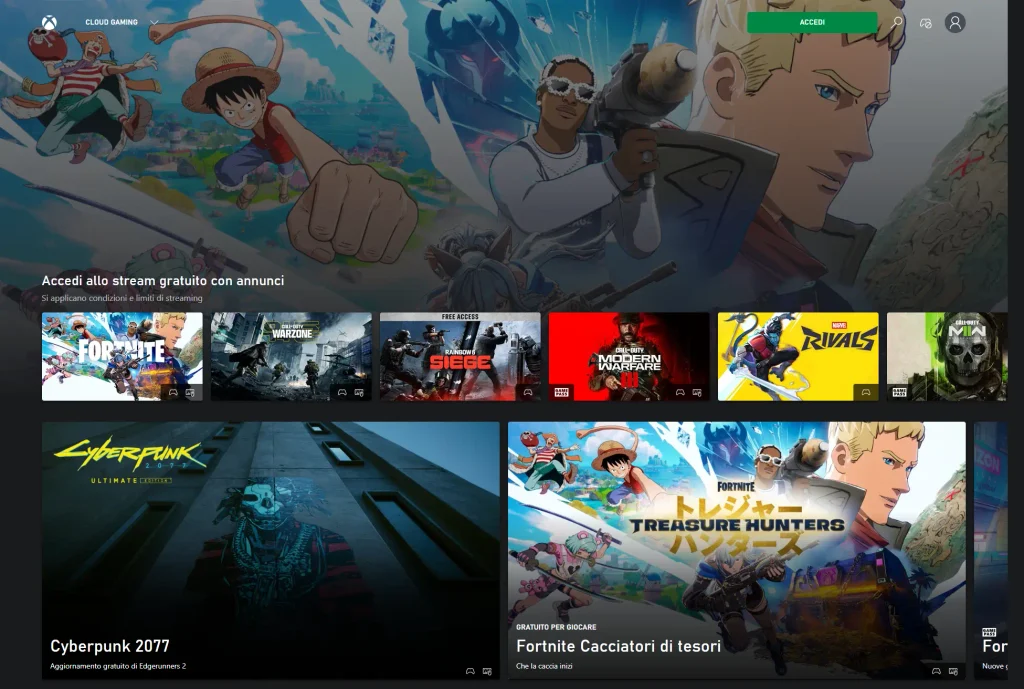
Cloud gaming may offer access with ads, purchased hours, or an eligible Game Pass plan. Availability varies: being able to use an old laptop doesn’t mean you can play any game for free.
How to figure out where the problem lies
If your first session isn’t satisfactory, change one condition at a time. Trying a different browser, another network, and another controller all at once makes it impossible to tell what made the difference.
| Try | What to compare |
|---|---|
| Same PC, Ethernet instead of Wi-Fi | Image stability and interruptions |
| Same game, another device on the same network | Differences related to the laptop or its configuration |
| Wired controller, if supported | Changes in command response |
| Session at a different time | Any differences in wait time and quality |
These comparisons offer clues, not a definitive diagnosis. If, for example, a phone works better than the PC, the two devices might be using different Wi-Fi bands.
Also note what the computer was doing: a session interrupted by a background download doesn’t necessarily reflect how the service usually performs.
When it makes sense to keep the old laptop
If streaming is stable and you’re satisfied with the response to commands, the laptop can find a new use without having to run demanding games locally.
If the connection remains the limiting factor, however, buying a more powerful computer might not solve the cloud gaming problem. Before spending money, it’s worth figuring out which part of the experience isn’t working.
The most useful test is simple: a game you’re interested in, your laptop, and the network you’d use every day. That’s the combination to base your decision on.