 Giovanni Correddu
Artificial intelligence is also changing the way we use graphics and productivity programs. One of the most interesting integrations is between Adobe and ChatGPT, which lets you use some Adobe tools directly in the conversation, without necessarily having to open Photoshop, Express, or Acrobat for every task.
The principle is simple: instead of searching through menus for the right command, describe to ChatGPT what you want to achieve and the connected Adobe app carries out the task.
Adobe has brought three of its best-known tools to ChatGPT: Adobe Photoshop, Adobe Express, and Adobe Acrobat.


6
How do Adobe apps work in ChatGPT?
ChatGPT apps let you connect external services to a conversation. Once connected, ChatGPT can use the features provided by the app to perform certain tasks.
In Adobe’s case, this means going beyond simple text prompts to actually editing images, graphics, and documents.
For example, instead of writing:
“How can I remove the background in Photoshop?”
you can go straight to:
“Remove the background from this image and make it transparent.”
And this is precisely where the integration gets interesting.
1. How to connect Adobe to ChatGPT
The first step is to connect the Adobe app you want to use.
Step 1 — Open settings
In ChatGPT, open:
Settings → Plugins
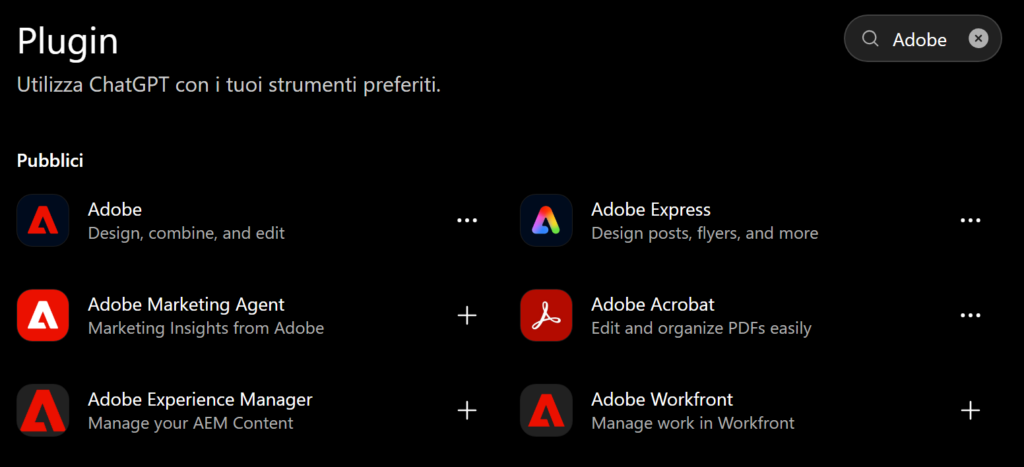
OpenAI moved the app directory to the plugins directory in 9 July 2026. Alternatively, go to Settings → Apps.
Step 2 — Search for Adobe
Find the Adobe app you want in the list:
- Adobe Photoshop
- Adobe Express
- Adobe Acrobat
Step 3 — Connect your account
Select Connect ( +) and follow the Adobe authentication process.
For Photoshop, for example, Adobe says to open ChatGPT, choose Apps, search for Adobe Photoshop, and press Connect.
For Adobe Express, the process instead involves going to Settings → Apps and Connectors, selecting Adobe Express, and then signing in with your Adobe credentials.
Once connected, the app will be available in the conversation.
2. Adobe Photoshop in ChatGPT
Adobe Photoshop is probably the most impressive integration.
The version built into ChatGPT lets you edit images using simple text instructions. Adobe lists possible tasks such as changing the background, adding or removing elements, applying creative effects, and adjusting light and color.
How to use it
After connecting Photoshop:
- Open a conversation.
- Press + in the message box.
- Select Adobe Photoshop.
- Upload the image.
- Describe the edit you want to make.
For example:
“Remove the background and leave only the person.”.
Or:
“Replace the background with a beach in Sardinia at sunset.”
You can continue with additional requests, gradually refining the result. Adobe recommends using structured prompts and making edits in successive steps.
Some practical examples
Removing an element
“Remove the sign in the background without changing the person.”
Changing the background
“Replace the background with an urban setting at night.”
Photo correction
“Slightly increase brightness and contrast, and correct the color balance.”
Social media format
“Adapt the image to a square format 1:1 while keeping the subject in the center.”
Creative effect
“Apply a cartoon effect while keeping the facial features recognizable.”
One particularly interesting feature is that, for some adjustments and effects, Photoshop in ChatGPT also lets you use controls and sliders in the full-screen view.
An important tip
It’s best to avoid overly general requests such as:
“Improve this photo.”
It’s more effective to specify what should be changed and what should remain unchanged:
“Increase the subject’s brightness, slightly reduce the background saturation, and don’t change the face.”
3. Adobe Express in ChatGPT
Adobe Express is designed primarily for quickly creating and editing graphic content.
Compared with Photoshop, then, it’s especially useful when you don’t want to do complex photo retouching but instead want to quickly create:
- social media posts;
- flyers;
- posters;
- invitations;
- promotional graphics;
- event content;
- advertising materials.
The Adobe Express app for ChatGPT lets you search for templates, edit text, replace images, change background colors, and apply animations, among other things.
Example: creating a poster
A request might be:
“Create a poster for a board game night. It should be cheerful, summery, and suitable for families. Leave space for the date, time, and location.”
You can then ask for successive changes:
“Make the title bigger.”
“Use a more modern style.”
“Replace the main image with a scene of people playing a board game.”
“Prepare a version suitable for Instagram.”
This approach is especially convenient for people who frequently produce promotional materials without wanting to build every graphic from scratch.
4. Adobe Acrobat in ChatGPT
If Photoshop works with images and Express with graphics, Adobe Acrobat is the star of PDF management.
The integration lets you perform various tasks on documents directly in ChatGPT, including:
- editing PDFs;
- creating PDFs;
- merging documents;
- extracting data;
- working with scanned documents;
- compressing files;
- organizing documents.
A concrete example
Suppose you have:
- curriculum.pdf
- lettera.pdf
- referenze.pdf
You can connect Acrobat and ask:
“Adobe Acrobat, merge these three documents into a single PDF.”
Adobe specifically documents this kind of workflow, including the option to create a single PDF from a résumé, cover letter, and references.
Other examples
“Adobe Acrobat, compress this PDF.”
“Adobe Acrobat, extract all the tables from the document.”
“Adobe Acrobat, merge these two PDFs.”
“Adobe Acrobat, create a single PDF document, putting the contract first and then the attachments.”
In this case, it’s especially useful to specify the app’s name in the request, particularly when multiple apps are connected.
5. Photoshop, Express, or Acrobat: Which should you choose?
| You want to… | Use |
|---|---|
| Edit a photo | Photoshop |
| Remove a background | Photoshop |
| Remove objects from a photo | Photoshop |
| Correct colors and lighting | Photoshop |
| Create a poster | Adobe Express |
| Create a social media post | Adobe Express |
| Customize a template | Adobe Express |
| Create promotional materials | Adobe Express |
| Merge PDFs | Acrobat |
| Edit a PDF | Acrobat |
| Compress a PDF | Acrobat |
| Extract information from a PDF | Acrobat |
| Organize documents | Acrobat |
In practice:
Photos → Photoshop
Graphics → Express
PDFs → Acrobat
6. The real advantage: working through conversation
The most important difference from using Adobe programs traditionally is how you give commands.
Normally, you need to know where to find a feature.
With the ChatGPT integration, however, you can describe the result you want.
For example:
Traditional method
Open Photoshop → select the subject → create a mask → change the background → refine the edges…
Conversational method
Remove the background, keep the hair natural, and add a white background.
The technology doesn’t eliminate Photoshop: it makes it easier to get to the feature you want.
7. How to write better prompts
Adobe recommends being specific, explicit, and descriptive, and, if needed, making small changes in successive steps.
A good structure could be:
ACTION + SUBJECT + EDIT + CONSTRAINTS
For example:
“Remove the person in the background, leave the main subject unchanged, and realistically reconstruct the setting.”
Or:
“Create a poster for a board game event in a modern, colorful style, in a vertical format, with an easy-to-read title and space at the bottom for the date and location.”
The more useful information we provide, the less the system has to interpret.
8. You don’t necessarily have to do everything in a single command
Instead of:
“Edit this photo, remove the background, change the colors, add a cinematic effect, crop it, add the logo, and prepare everything for Instagram.”
it’s often better to proceed like this:
1. “Remove the background.”
2. “Now correct the brightness and contrast.”
3. “Apply a subtle cinematic effect.”
4. “Crop to a 4:5”.
5. “Prepare the composition for Instagram.”
Adobe itself suggests focusing on individual aspects in successive prompts, rather than trying to do everything at once.
9. ChatGPT + Adobe: an example of a complete workflow
Imagine we need to prepare promotional materials for an event.
Stage 1 — Photoshop
We upload a photo of the event and ask:
“Remove the background and bring out the people playing.”
Photoshop prepares the image.
Stage 2 — Express
We then move on to Adobe Express:
“Create a poster using this image. Title: Board Game Week. Leave space for the date, time, and location.”
Express prepares the graphic.
Stage 3 — Acrobat
Finally:
“Turn the poster into a print-ready PDF.”
This way, ChatGPT becomes a kind of coordination hub for different Adobe tools.
10. Do you need an Adobe subscription?
An important distinction needs to be made here.
Adobe has made its apps available in ChatGPT even to users who want to try them without necessarily having a full Creative Cloud subscription. Adobe has said that Photoshop, Express, and Acrobat are available in ChatGPT for free for supported tasks.
However, availability, limits, and features may depend on the app, account type, and Adobe plan. So access to the Adobe app inside ChatGPT should not be confused with full access to all the features in the desktop versions of Photoshop, Express, or Acrobat.
In other words: Photoshop in ChatGPT doesn’t automatically mean you have the full desktop version of Photoshop.
11. Another important point: ChatGPT doesn’t completely replace Photoshop
The integration is powerful, but it shouldn’t be seen as a complete replacement for Adobe programs.
For highly complex professional work, it may still be necessary to switch to the full application.
The advantage is that ChatGPT can become the starting point:
idea → ChatGPT → Adobe → result → possible professional refinement
For Photoshop, Adobe itself lets you continue working by opening the result in Photoshop on the web or on iOS.
12. What about privacy?
When we connect an external app to ChatGPT, it’s important to remember that we’re authorizing an integration between services.
Depending on their features, ChatGPT apps may access information or perform actions through the connected service. OpenAI says that apps can take actions on the user’s behalf and that permissions can be managed in settings.
For this reason, it’s good practice to:
- connect only the accounts you need;
- check the permissions being requested;
- avoid uploading confidential documents unless you’re sure of the applicable terms;
- disconnect the app if you no longer use it.
The integration between Adobe and ChatGPT represents an interesting change in how creative tools are used.
There’s no longer any need to memorize every menu and command: you can start with your goal and let the conversational interface act as an intermediary.
The three apps have fairly clear roles:
Adobe Photoshop → image editing
Adobe Express → creating graphics and content
Adobe Acrobat → managing and editing PDFs
And what’s most interesting is that they can all fit into the same workflow.
For example, a simple request such as:
“Turn this photo into a poster and prepare the PDF for me.”
can be the start of a process involving Photoshop → Express → Acrobat, all starting from the conversation with ChatGPT.
This is probably the most interesting aspect of the integration: not learning to use three different programs, but learning to explain clearly to ChatGPT what result you want to achieve.