 Angolo di Windows
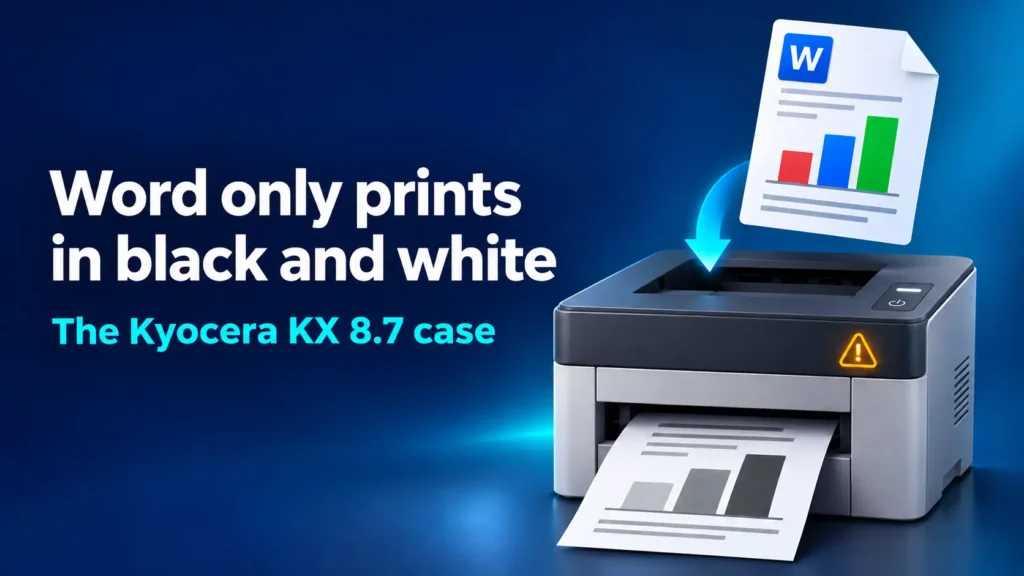
The document contains color text and images, color printing is selected in the printer properties, but the page still comes out in black and white. This is the behavior described in a report concerning Word desktop with Microsoft 365 build 16.0.20527.20150 and Kyocera KX 8.7, reproduced on two local workstations.
The interesting detail is that other applications continue to print in color on the same printer. The document exported from Word to PDF also retains its colors and prints correctly from the PDF reader.
Let’s look at what the tests show, which checks may help, and how to keep printing while waiting to clarify the cause.
What we know about the problem
The report concerns printing directly from Word. These are the details provided:
| Item | Reported result |
|---|---|
| Application | Word desktop for Microsoft 365 |
| Office build | 16.0.20527.20150 |
| Driver | Kyocera KX 8.7 |
| Printing directly from Word | Color content prints in black and white |
| Color option in the print properties | Already selected |
| Other applications | Color printing works on the same printer |
| Exporting to PDF and printing the PDF | Colors retained and color printing works |
| Word in safe mode | No change |
| Reproducibility | Behavior observed on two local workstations |
The printer model, Windows version, and full KX driver number are not specified. We therefore cannot extend the problem to all Kyocera printers or all installations of Microsoft 365.
A connection with the Office build or its interaction with the driver remains a hypothesis. The report alone does not prove which component is responsible.
The Microsoft 365: a later update is already available
In Microsoft’s official history, build 20527.20150 belongs to version 2610 of the Current Channel and was released on 4 November 2026. On 10 November 2026 build 20527.20196 for the same channel was released.
The release notes for both generically list functionality and performance fixes: they do not mention a specific fix for color printing from Word with Kyocera KX 8.7.
As of11 November 2026, no specific official confirmation of this problem was found in the public sources consulted. The existence of a newer build therefore does not allow us to declare it resolved.
Why does printing the PDF work?
The comparison is useful because it changes the path used to prepare the document for printing: Word first exports the content to PDF, then the PDF reader sends the job to the printer.
In the case described, this path retains the colors. This is a clue that directs checks toward printing directly from Word and its interaction with the settings and driver.
However, this is not enough to completely rule out the driver: different applications may use it in different ways. Likewise, reproducing the issue on two PCs makes the case more interesting, but it could also be due to a shared configuration.
How to print in color using a PDF
The temporary workaround that already worked in the reported tests is to export the document and print the resulting PDF.
- Open the document in Word.
- Go to File > Export > Create PDF/XPS Document and select Create PDF/XPS. Alternatively, use Save As and choose the PDF format.
- Save the file and open it with a PDF reader.
- Check that the colors are present.
- Start printing, select the correct printer, and check in the properties that color mode is enabled.
- Initially print just one test page.
Microsoft documents exporting to PDF in Office desktop applications. However, the successful printing for this specific combination comes from the report.
Switching to PDF lets you continue working, but it does not fix printing directly from Word. Before printing long documents, also check the paper size, scaling, and duplex settings.
What to check when printing directly from Word
The following checks are intended to narrow down the problem; they are not confirmed fixes for this case.
Check the printer properties in Word
Open File > Print, check which printer is selected, and open Printer Properties. Microsoft notes that color, grayscale, and black-and-white options depend on the printer and its driver.
In the report, color was already selected. This check is still useful for anyone experiencing a similar symptom, especially if there are multiple print queues.
Try a new, simple document
Create a blank document with a red line, a blue line, and a small color image. Print it directly from Word, then export it to PDF and print it again using the same queue.
If the new document also comes out in black and white only when printed from Word, the behavior does not seem limited to the original file. If it prints correctly instead, investigate the characteristics of the document showing the problem.
Comparing documents and applications is among the checks Microsoft suggests for diagnosing printing problems.
Consider the result of safe mode
To start Word in safe mode, close the application, press Windows + R, type the following command, and press Enter:
winword /safeIn the case described, this test has already been performed with no improvement. This diagnostic startup therefore appears to offer no benefit, and there is no reason to repeat it continually. In any case, the result does not automatically identify the driver as responsible.
Check for available updates
In Word, you can check for updates by going to File > Account > Update Options > Update Now, if the option is available. On company devices, distribution may be managed by IT.
After updating, repeat the test with the same document and queue, noting the new build. For drivers, check the package provided by the manufacturer for the exact model and operating system in use.
In a managed environment, it is preferable to compare results on a test workstation before changing a shared driver. Without a comparative test, an update remains a diagnostic attempt, not a guaranteed fix.
What to gather for a support request
To make the report useful to Microsoft, Kyocera, or the printer vendor, prepare:
- exact printer model and Windows version;
- full Microsoft 365 version and build, along with the update channel;
- full KX driver version;
- connection type: local printer, direct network connection, or print server;
- screenshots of the print properties used by Word;
- a test document without confidential data and its corresponding PDF;
- results before and after any updates, changing one component at a time.
For now, the most reliable practical guidance for the case described remains printing the exported PDF. Further comparisons or confirmation from the manufacturer are needed to attribute the defect to a specific Word build or driver version.