Angolo di Windows
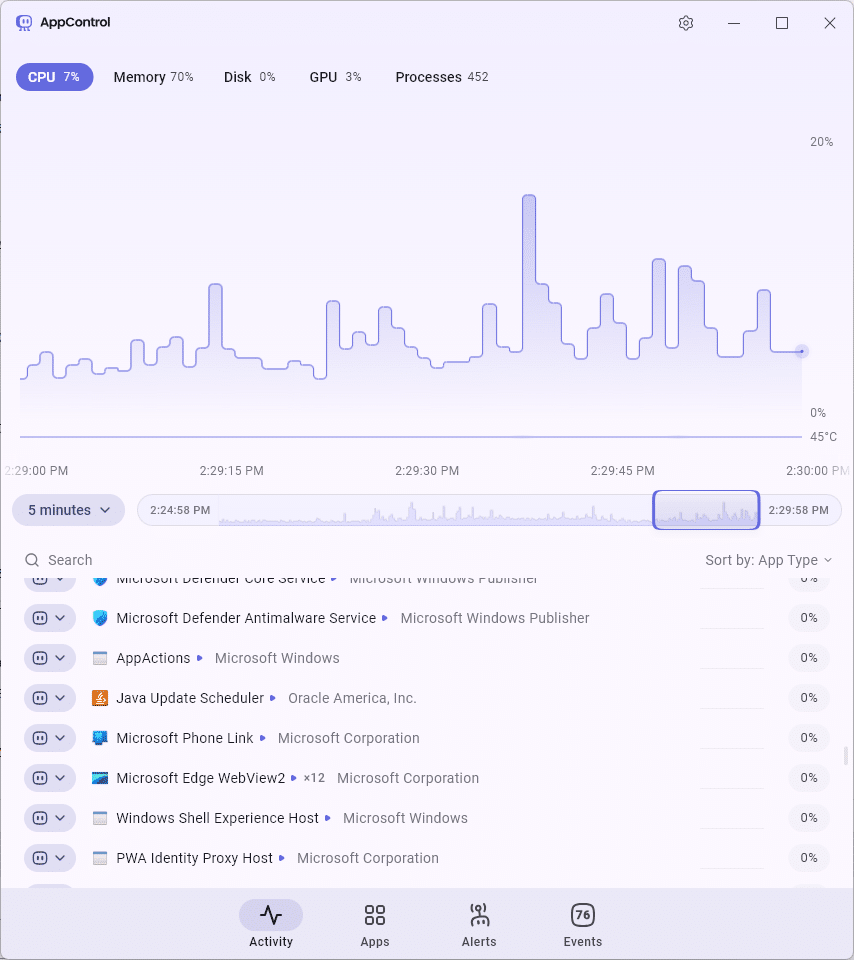
The PC slows down, the fans speed up, and when you open Task Manager, everything seems to have returned to normal. The problem is figuring out what happened a few minutes earlier. AppControl starts from this very need: it supplements resource monitoring with a browsable history containing information about applications and their activity.
The application also adds access logs for the microphone, webcam, and location, customizable alerts, and rules for stopping unwanted software. An optional integration is available for anyone who wants to query the data through an AI assistant. We’re testing it to explore these possibilities in everyday PC use.
Editorial transparency: we’re testing AppControl at the manufacturer’s request. The claimed features are accompanied by references to official documentation.
What is AppControl, and how much does it cost?
AppControl is a utility from AppControl Labs for Windows 10 and Windows 11. As of 27 October 2026, it is free, with no account or email registration required. The manufacturer is considering optional premium features for the future.
The name can be misleading: this is a third-party application, separate from Smart App Control and Microsoft’s App Control for Business. For Windows’ built-in protection, see our guide to Smart App Control.
The question to ask in this case is very practical: do we just need to check the active processes, or do we also want to reconstruct what happened earlier?
History: understanding what the PC was doing
The documentation describes a history of about 72 hours, with detailed activity tracking. CPU, GPU, memory, and disk can be examined over time, rather than just viewing the situation when the window is opened.
An example helps illustrate its usefulness. If you noticed a slowdown at 14:30, you can look up that interval and compare it with the recorded activity. A CPU spike and heavy disk usage provide a starting point for an investigation; the current usage reading, half an hour later, may no longer tell you anything about that episode.
The Activity tab lets you choose a time period and narrow down the interval by dragging across the graph. Information about CPU and GPU temperatures is also available, depending on hardware support.
There are two important distinctions, however. The history covers the period during which AppControl is collecting data: installing it today won’t let you reconstruct a slowdown from yesterday. Also, a process coinciding with a usage spike is a clue to investigate; by itself, it doesn’t prove that the program has a problem.
An update or video export may use resources exactly as expected. The value of the history is that it makes this activity observable, so it can be assessed in context.

Microphone, webcam, and location: access records with dates and times
AppControl records events related to applications accessing the microphone, webcam, and location. The Changes section collects detected changes and lets you search and filter events by application, publisher, or type.
For readers, this means being able to compare an access event with what they were doing: a meeting, an audio recording, or opening a program that uses location. The presence of an event does not automatically amount to a privacyviolation; however, it lets you identify unexpected activity and investigate it further.
The access log should not be confused with a recording of the content captured. Knowing that an app used the microphone does not mean you can obtain a recording of what it heard. Likewise, the absence of an event does not certify that no unwanted behavior has occurred.

Processes and EXEs explained in plain language
A list of names such as programma.exe may not tell much to someone trying to figure out what is running on their PC. AppControl offers simple descriptions of applications, processes, and executables, along with information about the publisher. The goal is to help interpret entries that would otherwise require a separate search .
These explanations should still be read critically. In its terms of use, the manufacturer itself states that insights may be incomplete, out of date, or inaccurate, and that some files may not have a description.
So, before deciding whether to take action on a process, it’s best to consider several factors: where the program came from, the file path, the publisher, and why it’s on the computer. A reassuring description is not enough to certify an executable, just as an unfamiliar name alone is not enough to deem it dangerous.

Stop an app, disable it, or block a publisher
In addition to ending a process, AppControl lets you disable an application to prevent it from launching again, and create blocks that apply to an entire publisher. These actions differ in scope: stopping a single program and blocking all executables associated with a publisher can have very different consequences.
It’s therefore a good idea to understand which components a broad rule will affect before applying it. Remote support software is the most immediate example: if you disable it while it’s your only way to access the PC, you could lose access. This risk is also explicitly noted in the terms of use.
It’s better to start by observing, identify the component involved, and act on the most specific target possible. A process that uses a lot of resources isn’t necessarily unnecessary: it may be performing exactly the task you asked it to do.
Custom alerts for new or unsigned apps
AppControl flags new or unsigned apps, with desktop or in-app alerts and the option to pause notifications for three hours.
These alerts are useful for noticing a change. They aren’t a verdict, however: a newly installed program is new to that PC, and a legitimate utility may be distributed without a digital signature.
To prevent alerts from becoming background noise, it’s best to select the events you actually want to monitor. A notification is valuable when it helps you make a decision, not simply because it appears on screen.

AI diagnostics via MCP: optional and read-only
The AI integration uses MCP, the Model Context Protocol, to make collected data accessible to a compatible assistant. It’s disabled by default and must be enabled manually; AppControl must be running to allow access.
You can ask questions such as: “Which processes used the most CPU during the slowdown?” or “Which apps accessed the webcam during the recorded period?” The assistant can then work with system data instead of offering only generic suggestions.
The key point is the scope of the integration: AppControl’s MCP tools are read-only. They let you inspect processes, events, rules, and metrics, but not change the configuration, modify rules, or block or unblock applications. This limitation applies to the tools provided by AppControl; an assistant equipped with other tools retains the capabilities of those tools.
The analysis results also need to be checked: AI can help identify a correlation, but its answer does not replace examining the data and context.
Another point to clarify concerns the code: the MCP server is published as an open-source project, while the AppControl desktop application remains proprietary. The two should not be confused.
Privacy: local data and features that communicate externally
According to the manufacturer, history is stored locally on the PC. This doesn’t mean every optional feature works without external communications.
The suspicious-app detection feature, which is disabled by default, may send the executable’s name, hash, and publisher details to the manufacturer’s servers, with authorization. The policy also notes that third-party services may be involved in generating descriptions.
A privacy-focused installation mode is documented and can be enabled with AppControlSetup.exe /privacy: it excludes features that require this data and communications with the manufacturer’s servers. In this mode, you must manually check for updates on the website.
MCP requires a separate assessment: connecting an AI service may involve sharing authorized data with that service, subject to its own privacy policy. It’s therefore important to distinguish between storing history on your computer and sending part of it to an external assistant.
Installation, Italian language, and command-line use
The download is available from the official AppControl website. Administrative privileges are required for installation; Italian is among the interface languages. You can launch the app with Win + Ctrl + A or from the notification area icon.
To get started, let it collect data, observe a normal work session, and compare events with known activities. You can assess blocking rules later, once you’ve precisely identified the program involved.
A command-line tool is also included: after installation, simply run appcontrol. The Monitor view shows current activity; the Log view lists process starts and terminations. The P key pauses the view’s refresh so you can read the values at your leisure.
For those who often work from the console, this option provides an alternative way to access the data without having to use the main window every time.
Who AppControl may be useful for
AppControl is particularly worth considering when a problem is intermittent: a fan speeding up while we’re away from our desk, a slowdown that has already ended, or an application appearing among the processes. Having a timeline makes subsequent diagnosis more concrete.
Task Manager remains a useful tool for checking processes, performance, and services, as Microsoft’s documentation explains. AppControl can complement it when a more detailed history of recorded activity is useful.
The manufacturer also states that AppControl does not replace an antivirus. Its use should also be considered in light of the type of machine: the terms of use advise against it in critical environments where stopping a process could compromise availability or security.
The usefulness of the history should be weighed against the impact of monitoring and the quality of hardware readings. Sensor behavior is also worth paying attention to: the changelog documents a correction to the temperature graph in version 1.4.0.415 dated 26 July 2026. This attests to maintenance of the feature, without guaranteeing the same result on every configuration.
So the first thing to try is the history: if it helps reconstruct an episode that previously went unexplained, the application is already meeting the need it was designed for.