Angolo di Windows
Guide updated on 14 October 2026. The paths apply to Windows 11 and, where indicated, Windows 10.
AppData: open the quick guide with paths and commands
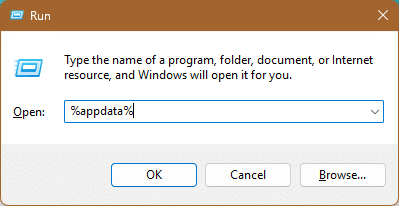
Want to open the folder right away? Press Win + R, type %appdata% and press Enter. This opens Roaming, a subfolder of AppData that contains application data and settings.
You can also use these paths in the File Explorer address bar, without enabling the display of hidden items.
| What you want to open | Path to paste |
|---|---|
| Roaming application data | %appdata% |
| Local application data | %localappdata% |
| LocalLow folder | %userprofile%\AppData\LocalLow |
| AppData main folder | %userprofile%\AppData |
| Temporary files folder | %temp% |
Looking for a program’s data? First check Roaming and Local, searching for the application or publisher name. The location depends on the software.
Want to free up space? Start with Settings > System > Storage > Temporary files, checking the categories before deleting them. AppData can also contain important archives and configurations.
Before modifying a folder, close the relevant program and save any necessary data. Avoid deleting AppData, Roaming, Local, or LocalLow in bulk. The name “Roaming” does not guarantee that its contents are synced or saved to the cloud.
A guide asks you to open %appdata%, perhaps to recover a file, save a program’s settings, or troubleshoot a problem. Enter the path and you find dozens of folders: some are named after applications you recognize, while others seem to belong to programs you uninstalled long ago.
Before deleting anything, it’s worth understanding where you’ve ended up. %appdata% normally opens the Roaming folder in your user profile, which may contain important application data. It is not a cleanup command, and it does not refer to the entire AppData folder. [1]
In this guide, we’ll look at how to open it, the differences between Roaming, Local, and LocalLow, how to identify data that’s taking up space, and how to manage backups and problems without losing information.
What is %appdata%?
APPDATA is an environment variable: a name that Windows associates with a value, in this case a path. The percent signs let you reference it in environments that recognize this syntax.
In a standard profile, it resolves to:
C:\Users\NomeUtente\AppData\RoamingMicrosoft documents APPDATA as a reference to the user’s application data folder. The path is relative to the user context: you don’t need to manually replace the name in the example. [1]
If you sign in to Windows with another account, or start a process with different credentials, check which profile the value refers to. On a corporate PC, the path may also be customized: the example on C: is a typical location, not a guarantee for every system.
How to open %appdata% in Windows
From the Run dialog
The quickest method is:
- Press Win+R.
- Type %appdata%.
- Press Enter.
File Explorer opens to the folder indicated by the variable. This step only takes you to the path; it doesn’t change program settings.
From File Explorer
Open File Explorer with Win+E, select the address bar, type %appdata% and press Enter.

The address bar and the search box have different functions. If you paste the path into search, you might start a file search instead of opening the folder directly.
From Command Prompt
To display the value:
echo %APPDATA%
To change to the folder:
cd /d "%APPDATA%"
The /d option lets cd change drives as well, if necessary. Quotation marks correctly handle any spaces in the path. [2]
From PowerShell
The syntax is different:
$env:APPDATA
To go to the folder in the session:
Set-Location -LiteralPath $env:APPDATA
To open it in File Explorer:
explorer.exe $env:APPDATA
PowerShell accesses environment variables through $env:. Therefore, typing only %appdata% in the PowerShell terminal is not equivalent to the command used in Run.
You don’t have to run these commands as an administrator to access your profile path normally.
AppData, Roaming, Local, and LocalLow: the differences
AppData is the folder that contains several areas for application data. Roaming is just one of its subfolders.
| Path to open | Standard location | What it refers to |
|---|---|---|
| %appdata% | C:\Users\NomeUtente\AppData\Roaming | Application data in the Roaming area |
| %localappdata% | C:\Users\NomeUtente\AppData\Local | Local application data |
| %userprofile%\AppData\LocalLow | C:\Users\NomeUtente\AppData\LocalLow | LocalLow area |
| %userprofile%\AppData | C:\Users\NomeUtente\AppData | AppData main folder |
| %programdata% | C:\ProgramData | Shared data area, separate from the user profile |
The standard locations for these folders are listed in Microsoft’s documentation on Windows known folders.
Roaming
This is the area intended for application data associated with the profile that may be used in roaming-profile scenarios. It does not mean that all its contents are automatically transferred over the Internet or to another computer.
Local
This area is intended for the user’s local application data. However, it should not be interpreted as a “junk files folder”: data that stays on a single PC can still be essential to the program and the user. Microsoft distinguishes this area from the ApplicationData repository in its APIs.
LocalLow
The name refers to the low integrity level, a concept in Windows security. It does not mean a smaller version of Local or a folder made up exclusively of temporary files. Microsoft explicitly documents the low integrity requirement in a troubleshooting guide related to LocalLow.
Where information is actually saved depends on the application. The folder name alone is not enough to decide whether its contents should be deleted.
Why is AppData hidden?
AppData is normally hidden in the profile view. You can still reach it directly using the paths shown.
If you want to see it while browsing folders manually:
- in Windows 11, use View > Show > Hidden items;
- in Windows 10, use the View tab and the Hidden itemsoption, or Folder Options.
Microsoft documents the view settings for both versions.
Showing a hidden folder doesn’t change permissions or make files in usedeletable. Also, “hidden” does not mean “encrypted”: it’s a display attribute.
What it contains: not just cache
Depending on the program, you may find configurations, templates, databases, logs, profiles, and working files in AppData. To understand the importance of an item, you need to identify the application that manages it.
One specific example is Normal.dotm, Word’s default template: Microsoft normally locates it in:
%appdata%\Microsoft\TemplatesThe template contains styles and customizations used for new documents. Deleting or replacing it can therefore change Word’s behavior and cause customizations to be lost.
The folder is also useful for reaching certain profile locations, such as:
%appdata%\Microsoft\Windows\Start Menu\Programs\StartupThis is the user’s Startup folder, not the complete list of all the mechanisms that can start programs in Windows. Microsoft documents this path among the profile folders.
The criterion to follow is the contents, not the size: an important archive can take up a lot of space; a file of just a few kilobytes can contain an essential setting.
Why can’t I find the program I’m looking for in %appdata%?
An app may use Local, LocalLow, a custom location, or paths specific to Windows packages. So opening Roaming won’t necessarily show all its data.
For some MSIX applications, Microsoft documents locations such as:
%localappdata%\Packages\<PackageFamilyName>\LocalStateThe MSIX guide also distinguishes LocalCache and virtualized paths. The Packages folder is not a collection of leftovers to delete in bulk.
For Microsoft Edge, a more precise check is to open:
edge://versionand read Profile path. A corporate policy can change the data location: it’s best to check the actual path rather than assume it’s always the one in a guide found online.
If a folder mentioned in an old article doesn’t exist, check the program version, the profile being used, and the manufacturer’s documentation before creating it manually.
Does Roaming mean automatic synchronization?
No. The folder name does not enable synchronization.
In corporate roaming profiles, Windows can load the profile from a shared location and merge its changes with the copy on the server when the user signs out. These scenarios are configured by administrators and differ from the standard local profile on a personal PC.
There is also another technical distinction: the ApplicationData.RoamingFolder property in Windows applications is not the same as the simple %appdata% variable. Microsoft notes that the previous roaming of data and settings through that feature is no longer supported starting with Windows 11.
So neither the name “Roaming” nor signing in with a Microsoft account proves that all application data is already safe on another device.
Can I delete AppData to free up space?
Don’t delete all of AppData, Roaming, Local, or LocalLow.
A blanket deletion can remove data and configurations that programs need. Some items may be recreated, others may not. A folder reappearing doesn’t prove that its previous contents have been recovered.
Even the name Cache should be checked against the app’s documentation: not all applications clearly separate rebuildable cache, offline data, and persistent files.
A safer approach to cleanup
- Identify which application is taking up space.
- Look in the program for a feature to manage cache, downloads, or offline content.
- Check the manufacturer’s procedure.
- Save any data that you can’t recreate.
- Run the recommended cleanup and check the result.
For temporary files managed by Windows, start with Settings > System > Storage > Temporary files or Storage Sense. Microsoft provides these tools to free up space without turning AppData into a target for indiscriminate deletion.
Read also: What’s taking up so much disk space?
Read the selected categories before confirming: “freeing up space” may involve deleting files you want to keep.
Are %temp% and %appdata% the same thing?
No. TEMP identifies a temporary folder; APPDATA identifies the Roaming data area.
In a standard profile, TEMP often points to:
C:\Users\NomeUtente\AppData\Local\TempMicrosoft documents this as a typical location, but the value may differ.
To check the actual path, use %temp% in Run or Env: Temp in PowerShell.
Before cleaning up manually, close applications and check that no installations or updates are in progress. If Windows reports files in use, don’t force their deletion. The temporary folder is no reason to interrupt activities that are still needed.
How to find which folder is taking up space
For an initial check, open AppData, select a subfolder, and use right-click > Properties. The calculation may take time if there are many files.
Distinguish Size from Size on disk: the space used also depends on how files are stored on the volume. If links, limited permissions, or special data are involved, treat the result as an indication to investigate further.
For useful results, compare individual program folders. If an app is growing rapidly, note what it’s doing and check whether it’s accumulating logs, downloads, or offline content.
Don’t delete the largest folder just because it’s at the top of the list. For example, removing a download from the app’s interface may be useful, but destroying the database that manages it may be much less so.
Backing up AppData: what should you save?
The first step is to understand what information you need to recover: settings, templates, a local archive, or an application’s complete profile.
Prefer the program’s export or backup feature, when available. A documented export may include data saved in several locations, while copying a single subfolder may leave some of it behind.
If the manufacturer recommends copying the files:
- completely close the program;
- identify the correct path;
- copy the necessary folder to a separate destination;
- note the application, version, user, and date;
- verify the restore in a suitable environment before relying on the copy.
If services or processes are still writing to the files, a simple copy may not be consistent. For critical archives, use the backup method provided by the application.
Do Windows Backup and OneDrive copy all of AppData?
You shouldn’t assume so. Windows Backup documents backing up the Desktop, Documents, Pictures, Videos, and Music folders, as well as categories of settings and app information. That is not the same as a complete copy of every program’s data in AppData.
So before reinstalling your PC, check what your backup actually covers. Seeing an app in the restore list doesn’t prove its local database will be recovered.
Does copying AppData to another PC transfer programs?
Not necessarily. A data folder doesn’t necessarily contain everything the program needs: installation files, services, dependencies, system settings, or separate activations may also be required.
A considered migration involves reinstalling the app on the new PC and restoring only what the manufacturer says is transferable. Copying the old AppData over the new one in bulk can overwrite useful configurations or introduce incompatibilities.
Passwords and sign-ins may not be transferable
Some protected data may be tied to an identity or device. One example is DPAPI, the Windows data protection technology: Microsoft documents that, normally, decryption and credentials are linked to the context that encrypted the information, subject to specific conditions and exceptions.
A practical consequence is that copying the file doesn’t guarantee you can reuse the password or session it contains. Don’t erase the old environment before verifying access to the data on the new one.
Using AppData to troubleshoot an app
A damaged configuration may be part of a problem, but AppData is not a universal solution. Before taking action, identify the symptom and the procedure intended for that program.
If the manufacturer suggests recreating a specific configuration folder, renaming it may be more recoverable than deleting it. However, limit this to the folder specified: don’t rename all of AppData, Roaming, or Local.
A sensible procedure is:
- save or export important data;
- close the application and related processes;
- verify the exact path;
- rename only the item specified in the guide;
- start the app and check whether the symptom changes.
The test may cause the app to start with new settings and require you to sign in again. If you need to revert, close the program and keep the data generated during the test as well before restoring the previous folder.
Don’t automatically merge old and new files: formats and versions may differ. If the test doesn’t help, stop that attempt and look for another cause.
Common problems with %appdata%
The path can’t be found
Check that you typed the variable without spaces and in the right place. Then read the value in a normally opened Command Prompt:
echo %APPDATA%If it returns a path, try opening that path. If the literal text %APPDATA% remains, the variable wasn’t expanded in that context.
Don’t blindly change it to a new path: on a corporate PC, there may be intentional redirection.
“Access denied” appears
Check whether you’re accessing your own profile or another user’s. In a managed environment, there may be specific permissions or a network location.
Taking ownership of the entire folder or replacing all its permissions is not an appropriate first attempt: it can alter a correct configuration without resolving the cause.
A folder reappears after deletion
The program or a component that’s still active may recreate it. Identify the software involved and consider uninstalling or configuring it, rather than repeatedly deleting the folder.
The profile name doesn’t match the display name
Don’t construct the path from the name shown in the Start menu or from the email address. Read %USERPROFILE% and %APPDATA%: they show the locations used in the current context.
Settings or data disappeared after cleanup
Stop deleting things and check the Recycle Bin, backups, and the program’s recovery tools. The automatic recreation of a folder doesn’t guarantee recovery of the previous information.
Can AppData contain malware?
A file’s location alone doesn’t determine whether it’s trustworthy. Don’t consider a program safe just because it’s located in AppData; likewise, an unfamiliar folder isn’t automatically an infection.
If you notice suspicious behavior, record the path, file name, and antivirus alert details. Use the security tools to investigate the problem instead of deleting folders blindly and losing useful evidence.
AppData should also be treated as a potential source of personal information: databases, logs, and configurations may contain details you don’t want to make public. When requesting support, share only what’s necessary and remove sensitive data.
Windows privacy settings related to file system access are not a universal barrier for all software: Microsoft notes that some desktop programs don’t appear in the list and aren’t subject to those controls.
Can I move AppData to another drive?
Don’t move all of AppData using simple cut and paste, and don’t modify APPDATA just to point it to another drive.
Changing a variable doesn’t automatically migrate files, settings, and references already used by programs. Also, the path requested through Windows APIs shouldn’t be confused with a value manually changed in the session.
To free up space, first look in the app for options to move downloads, cache, or archives. In a corporate environment, redirection requires a design that takes profiles, permissions, and network availability into account.
Symbolic links and Registry changes can introduce dependencies that are difficult to diagnose: a general guide to AppData isn’t enough to guarantee they’re compatible with all programs.
Guidance for developers and system administrators
Avoid hard-coding a path such as C:\Users\Mario\AppData\Roaming. Interroga Windows per la cartella appropriata e crea una sottocartella riconoscibile per prodotto o produttore.
In .NET, you can retrieve paths with:
string roaming = Environment.GetFolderPath(
    Environment.SpecialFolder.ApplicationData);

string local = Environment.GetFolderPath(
    Environment.SpecialFolder.LocalApplicationData);
Microsoft also distinguishes CommonApplicationData, which refers to application data shared among users. Choosing a path does not eliminate the need to define appropriate permissions. [6]
If you distribute software, document where configurations, persistent data, cache, and logs are located. Specify what to export and what can actually be rebuilt: this helps users back up their data and reduces destructive support interventions.
For system administrators, the execution context is essential: a script started by a service or scheduled task may run under a different identity from the desktop user. Read the values and verify the actual identity before working with the data.
Frequently asked questions
Do AppData and %appdata% refer to the same thing?
No. AppData is the main folder; %appdata% normally points to Roaming.
Does Local contain only temporary files?
No. It’s an area for local application data and may contain information worth keeping.
Can I delete an app’s old folder after uninstalling it?
First check that it doesn’t contain necessary data and isn’t shared with other products. A folder left behind after uninstallation may be a remnant, but its name alone isn’t proof.
Can I use a path I found online?
Use it as a starting point. Check the software version, user, and actual path before following a procedure.
Is a folder in AppData already protected by a backup?
Only if your backup system actually includes it and the restore has been verified. “Roaming” doesn’t mean “saved to the cloud.”
Where to start when a guide mentions %appdata%
Open the path, check the specified subfolder, and identify the application that uses it. To free up space, prioritize cleanup tools; to preserve data, check the backup; to troubleshoot an error, follow a specific procedure.
The useful question isn’t just “can I delete it?” but “what will I lose, and how will I be able to restore it?”. Answering that before modifying files makes AppData a useful diagnostic resource without turning it into a source of new problems.