Angolo di Windows
Picture the scene: you sit down at your PC, ready to download an essential app from the Microsoft Store or launch a title on Xbox Game Pass, and you hit an invisible wall. The error in question is 0x80860010.
This is a particularly frustrating situation, well known in the community (a case in point is the user in the thread on MS Learn, who got stuck in an endless authentication loop and was unable to scan their passkey). When authentication fails at this level, we’re not dealing with a simple graphical glitch, but with a critical disruption in communication between the operating system’s local services and Microsoft’s cloud infrastructure.
In this guide, we won’t just throw out the usual wsreset.exe, but will analyze and solve the problem at its root using a methodical approach.
1. Check Windows Services (The Invisible Infrastructure)
In an environment as structured as Windows 11, sign-in depends on a series of services running in the background. If the component that manages digital identity is stopped, the entire Microsoft app ecosystem stops communicating. Error 0x80860010 very often stems from this.
To check the status of the services:
- Press Win + R, type
services.mscand press Enter. - Find the following services in the list:
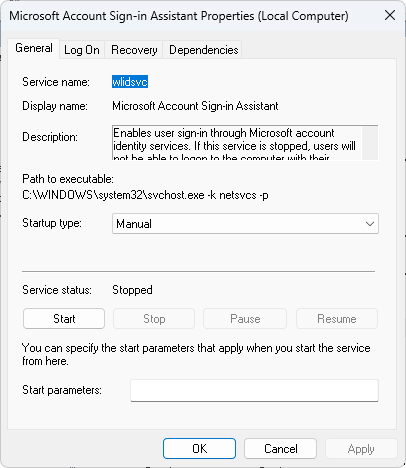
- Microsoft Account Sign-in Assistant (Microsoft Account Sign-in Assistant): set to Manual
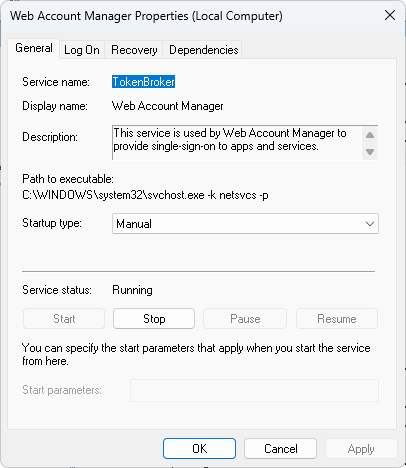
- Web Account Manager: set to Manual and Running
- Windows Push Notifications User Service: set to Automatic and running
2. Re-register the Store using PowerShell
Sometimes the problem is related to the AppXManifest, the file that tells the operating system how the application should behave. If it becomes corrupted, a simple reset in Settings isn’t enough: the app’s foundations need to be reinstalled.
To force a thorough repair without affecting user data, we’ll use PowerShell (I’ve also corrected the original command syntax to make sure the system variable is interpreted correctly).
- Open the Start menu, type PowerShell, right-click and select Run as administrator.
- Paste the following command and press Enter:
Get-AppxPackage -AllUsers Microsoft.WindowsStore | Foreach {Add-AppxPackage -DisableDevelopmentMode -Register "$($_.InstallLocation)\AppXManifest.xml"}
This script re-registers the Store components directly in the Windows registry, restoring broken links.
3. Restore Account Sync
It may seem counterintuitive, but the lockup could be caused by a corrupted copy of user settings stored in the cloud. When Windows tries to sync, it encounters the error and gets stuck. We need to force the cloud cache to be cleared.
- Go to Settings > Accounts > Backup in Windows (or “Sync your settings,” depending on the build).
- Temporarily disable sync.
- Restart the PC.
- Once you’re back at the desktop, turn the feature back on. This cycle will force the system to establish a clean connection with Microsoft’s servers, discarding the previous data.
4. The Workaround: Create a New User Profile
If the error persists despite the previous steps, it’s highly likely that the entire local user profile is corrupted. Rather than spending hours on troubleshooting that may prove futile on a compromised foundation, the most practical and efficient solution in an IT environment is migration.
As many users’ experience has shown, creating a new user (from Settings > Accounts > Other users) resolves the issue instantly. Although you’ll need to switch to a different account to use the Xbox ecosystem and the Store, this proves that the underlying OS is intact and the damage is limited exclusively to the old user profile.
5. Repair the System Image with SFC and DISM
If even a new profile can’t authenticate, it means the problem lies in the main system files . In this case, let’s move on to the advanced diagnostic and repair tools.
Open the Command Prompt as administrator and run these two commands in sequence, waiting for each one to finish:
sfc /scannow
DISM /Online /Cleanup-Image /RestoreHealth
The first (SFC) will check the integrity of local files. The second (DISM) will use Windows Update to download a healthy system image directly from Microsoft’s servers and replace any damaged components. Once it’s finished, restart the PC.
Final Thoughts
Fixing error 0x80860010 shows how our use of Windows today is closely tied to the cloud. Tackling it requires a logical approach: start with local services, move on to script-based repair, and, if necessary, isolate the problem with a new account. Persisting in trying to repair a severely corrupted user profile is often a waste of time; sometimes, embracing the clean start of a new account is simply the better technical choice.