Angolo di Windows
If, after the August security update 2026 (KB5121003, build 26200.9168) your Windows PIN 11 stopped working, you’re not going crazy and you haven’t lost your files. There’s a bug, and in this article I’ll explain what causes it and how to get out of it without reinstalling anything.
The problem
After installing the update, this error appears at login:
PIN request not supported
And then the panic sets in: you try to reset the PIN from your Microsoft account, but nothing works; the error remains. In some cases, Windows even loads a “blank” desktop — no icons, no documents, no settings — and your first thought is “I’ve lost everything.”
Take a breath: you haven’t lost anything. Microsoft has not yet officially acknowledged the problem, but behind the scenes, what’s happening is fairly clear.
What’s going on under the hood (in brief)
The update seems to break something in the User Profile Service (ProfSvc), the service responsible for mounting the user’s registry hive (the file NTUSER.DAT that holds all your settings). When this mount fails, Windows can no longer access your actual profile and either blocks you from logging in or lets you in to a temporary profile that looks “brand new.”
Beyond the fix
There’s often something more interesting behind a Windows error than just the steps to fix it.
On Substack, I share analysis, reflections, and insights into the world of Microsoft and Windows, and how our relationship with technology is changing
Subscribe to Angolo di Windows on Substack
Your files are still there, in the original profile folder — it’s just that right now, the system no longer knows how to reach them.
How to fix it
There are two options, ordered by how “invasive” they are:
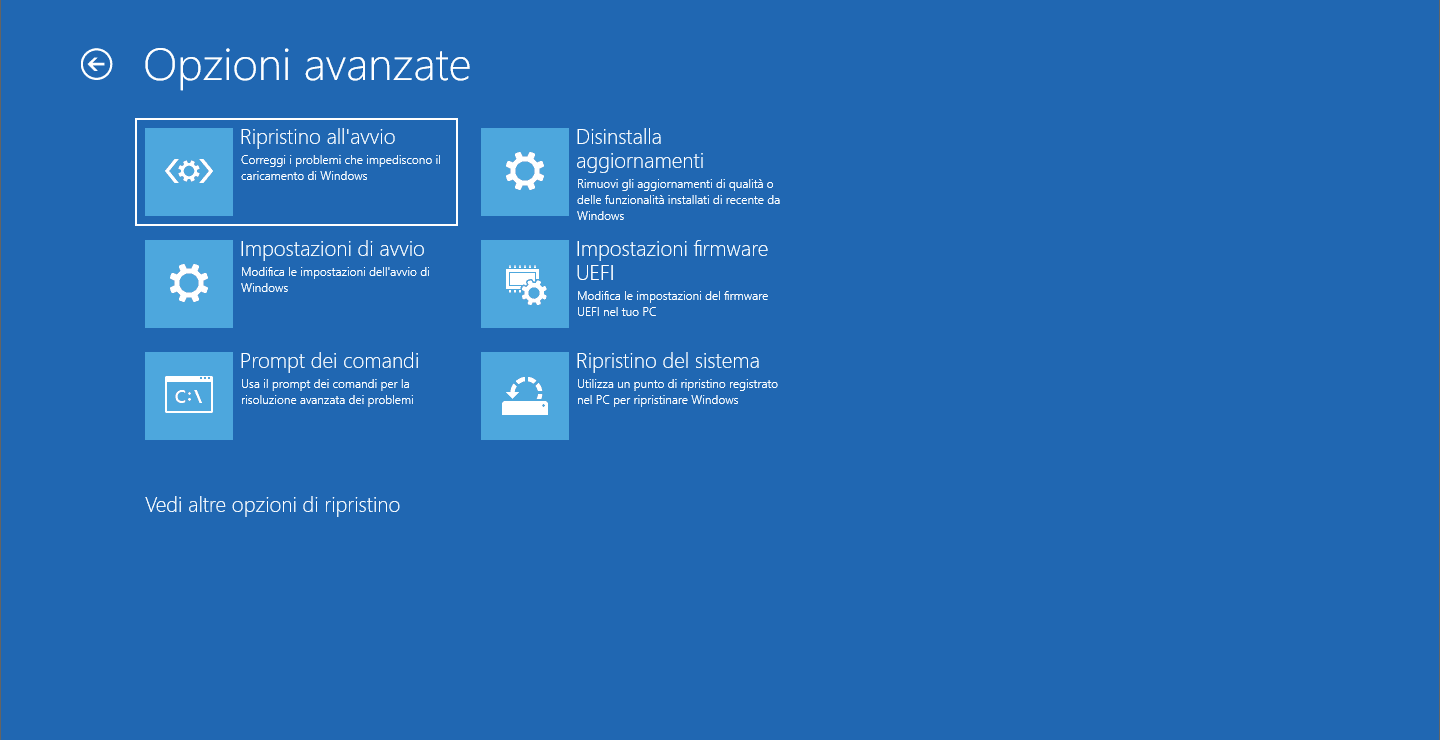
- Uninstall KB5121003 from WinRE (Recovery Environment)
Since you often can’t even log in, you need to uninstall the update from the Windows recovery environment. In many cases, this is enough to get everything working again. - System Restore, if point 1 isn’t enough
If the registry is already somewhat compromised, uninstalling the update alone might not fix the problem. In that case, go back to an restore point from before the installation of build 26200.9168.
Step by step:
- Force 3 interrupted restarts to enter WinRE
- Go to Troubleshoot → Advanced options → System Restore restore
- Choose the checkpoint immediately before KB5121003
- Start the rollback and check that your real profile is back after restarting
A tip: pause updates
Here’s an annoying detail: if you do nothing, Windows Update may reinstall the same faulty package straight away, putting you back in the same loop. So, as soon as the problem is fixed:
Go to Settings → Windows Update and turn on “Pause updates” for at least 7-14 days, or until Microsoft releases a corrective patch that replaces build 26200.9168.
Report the bug (it helps others too)
If you want to help get the problem officially recognized, open the Feedback Hub app and report:
- The code KB5121003 and build 26200.9168
- The behavior (blocked login / temporary profile)
- If possible, attach the event logs related to ProfSvc
- Category: Installation and update
The more reports come in, the sooner Microsoft will classify the bug as a “Known Issue” and release an official fix .