Alvise C.
Although modern PCs boot in seconds thanks to NVMe SSDs, power management remains a crucial factor, especially on laptops. Windows 11 hides by default one of the most useful power-saving features: hibernation.
Here’s a complete guide to what it is, how it works, and how to enable it on your system.
What hibernation is and how it works
Hibernation is a power state originally designed for laptop computers. When you put your PC into hibernation, Windows takes everything currently open (documents, running applications, browser tabs) and saves an exact snapshot of it to the hard drive, inside a system file hidden file called hiberfil.sys.
Once the save is complete, the computer shuts down completely, bringing power consumption to zero. The next time it starts, Windows reads the file hiberfil.sys and reloads the system exactly as you left it.
| Feature | Sleep | Hibernate |
| Where data is saved | RAM | Disk (SSD/HDD) |
| Power consumption | Low (RAM must remain powered) | None (the PC is physically off) |
| Resume speed | Instant (1-2 seconds) | Moderate (depends on disk speed) |
| Risk of data loss | High in the event of a power outage or a dead battery | None |
How to enable hibernation in Windows 11
Microsoft chose to hide the hibernation option from the Windows Start menu 11 by default, but re-enabling it takes just a few steps through the classic Control Panel.
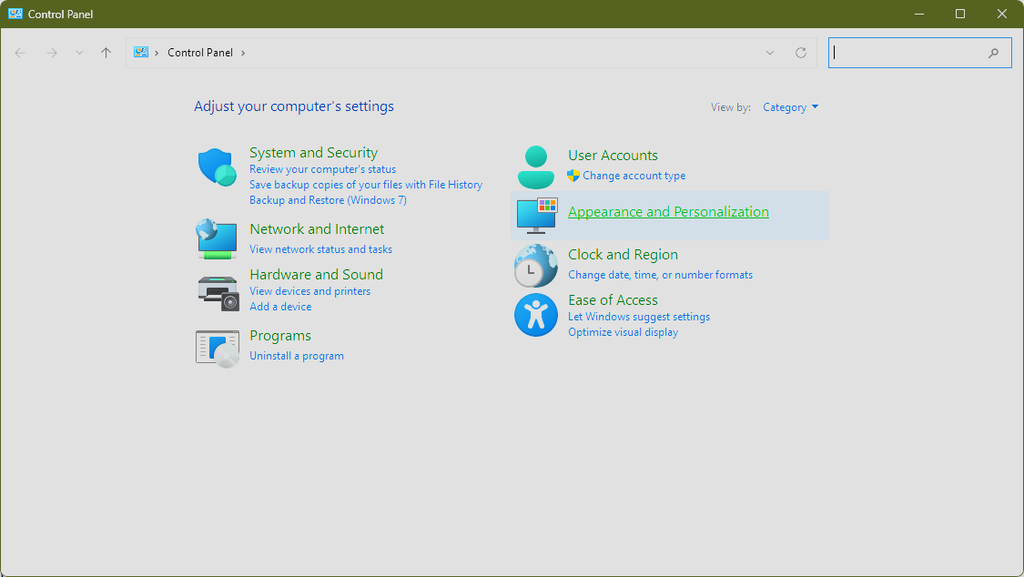
1.Open Control Panel:
Press the keyboard shortcut Win + R, type control and press Enter.
2.Go to Power Options:
Make sure the view is set to “Large icons” or “Small icons,” then click Power Options.
3.Change the button actions:
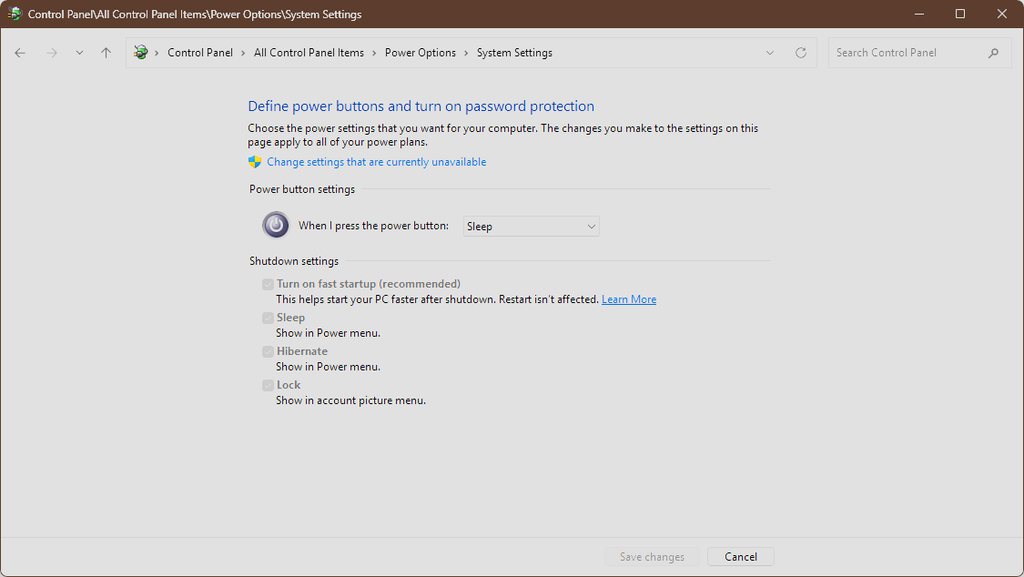
In the left-hand menu, click Choose what the power buttons do.
4.Unlock the advanced settings:
Click the link with the blue shield Change settings that are currently unavailable settings that are currently unavailable to obtain administrator privileges.
5.Enable hibernation:
In the “Shutdown settings” section at the bottom, check the box Hibernate and click the Save changes.
The quick method: PowerShell
If you prefer to manage system administration from the command line, you can enable hibernation in a single step.
- Right-click the right-click the Start button and select Terminal (Admin) or Windows PowerShell (Administrator).
- Type the following command and press Enter:
powercfg.exe /hibernate on
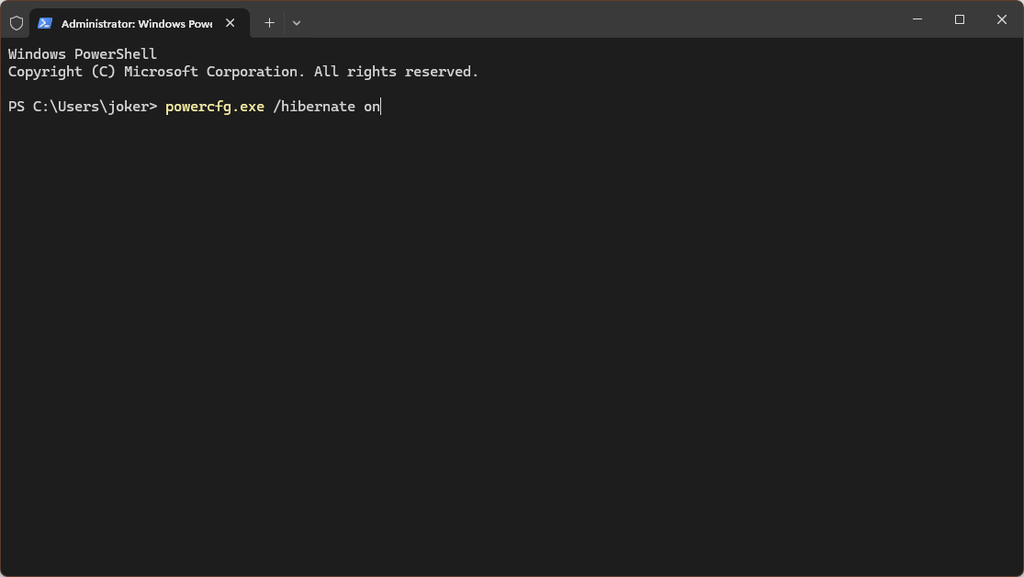
(Note: This command not only enables the feature system-wide, but also recreates the file hiberfil.sys if it has been removed).
How to use hibernation
Once enabled, using hibernation is very simple:
- Click the Start button in Windows 11.
- Click the Power icon in the bottom-right corner.
- Select Hibernate from the drop-down menu.
Pros and cons of hibernation
Advantages:
- Zero power consumption: Ideal if you need to leave your laptop unplugged for days without losing your work.
- Continuity: Lets you resume complex work sessions without having to reopen dozens of programs and files.
Disadvantages:
- Disk space: The file
hiberfil.systakes up disk space equal to about 40% – 75% of your total RAM (e.g., on a PC with 32 GB of RAM, the file will take up about 13-24 GB). - SSD wear: Repeated writes of large blocks of data use up write/read cycles in SSD memory cells, although the impact is marginal on modern drives.
How to manage the hiberfil.sys file correctly
The file hiberfil.sys can be resized using the command-line tool powercfg. The best approach depends on whether you want to keep full hibernation functionality or only want to retain Fast Startup.
Option 1: Reduce the allocated percentage (Keeps hibernation) If you want to keep using hibernation but limit the space it takes up, you can force Windows to compress memory data more by setting a specific percentage of total RAM. The minimum supported by the system is 40%.
- Right-click the right-click the Start menu and open Terminal (Admin) or Windows PowerShell (Administrator).
- Type the following command (changing
50to the desired percentage, for example from 40 to 100) and press Enter:powercfg /h /size 50
Option 2: Switch to reduced mode (Fast Startup only) If you don’t need full hibernation but don’t want to give up Fast Startup (which saves only the Windows kernel and basic drivers to speed up startup), you can set the file to reduced mode. This will drastically reduce the size of hiberfil.sys, bringing it down to about 20% of installed RAM.
- From Terminal (Admin), run the following command:
powercfg /h /type reduced - After pressing Enter, the “Hibernate” option will disappear from the shutdown menu, but Fast Startup will continue to work normally.
How to restore the default values If you notice problems or want to return to the standard size (which Windows dynamically allocates at around 75% of RAM), simply reopen the terminal and run: powercfg /h /type full