Fantino Bianchi
Modern smartphones incorporate graphic transitions and visual effects designed to make navigation smooth and visually appealing. However, these animations introduce an intentional delay between tapping the screen and the content actually appearing. Changing the system animation scale from 1x to 0 x lets you halve the interface’s waiting times, making the device feel instant and much more responsive and faster in everyday use.
1 Why animations make the experience feel slower
When you tap an app icon, close a folder, or switch from one screen to another, Android does not load the final frame directly. The system runs a sequence of transitions:
- Zoom and fade effect: The icon expands to fill the screen.
- Sideways scrolling: Pages or windows scroll from right to left.
- Redrawing UI components: Drop-down menus, the notification shade, and pop-ups appear gradually.
At the default speed (1x), each animation usually lasts between 200 and 400 milliseconds. Reducing this value to 0 x, halves the duration (100-200 ms). The processor hardware and RAM remain unchanged, but the overall experience feels much faster because graphical dead time is eliminated.
2 How to Unlock Developer Options
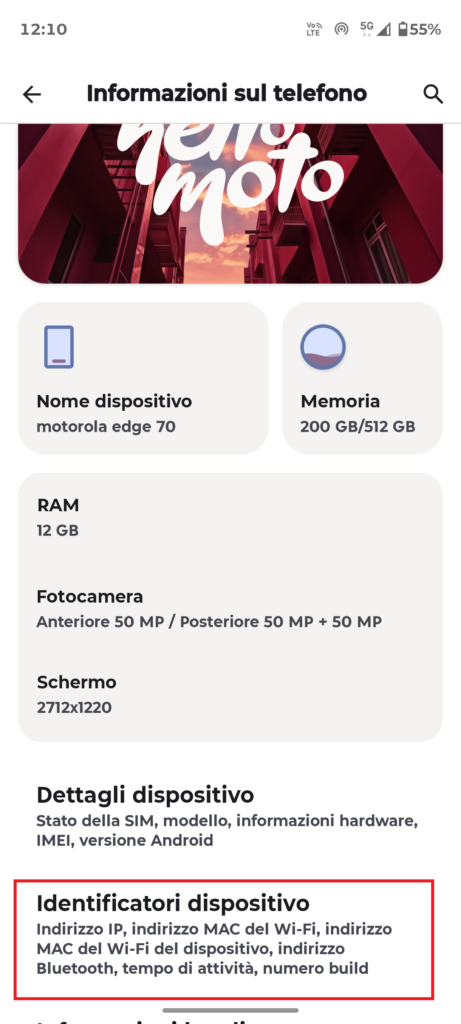

The controls for adjusting interface speed are protected within the advanced menu for developers. This menu is hidden by default to prevent accidental changes.
- Open your phone’s Settings .
- Scroll down and select About phone (or Device info).
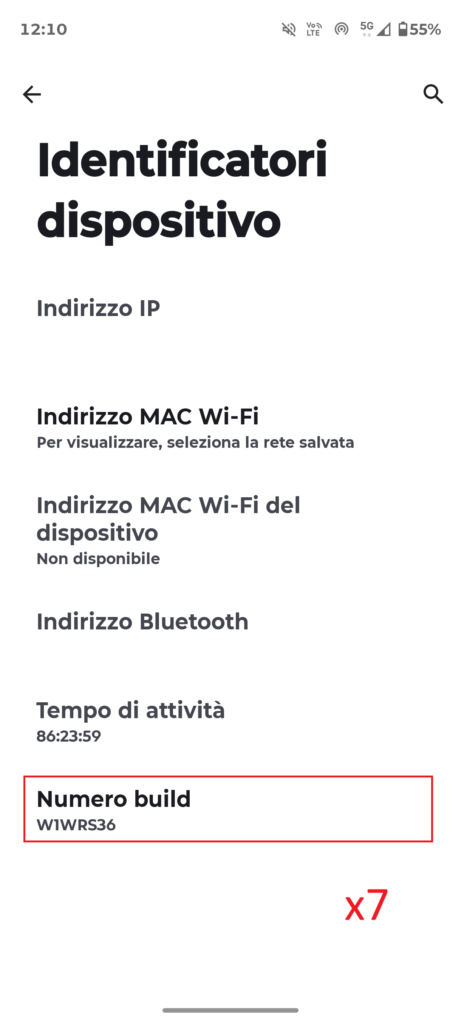
- Look for Build number (or Build version).
- Samsung: Go to About phone > Software information > Build number.
- Xiaomi / Redmi / POCO: Look for MIUI version or HyperOS version.
- OPPO / Realme / OnePlus: Go to Device information > Version > Build number.
- Tap Build number 7 times in quick succession.
- If prompted, enter your PIN, unlock password, or fingerprint.
- A confirmation toast message will appear on screen: “You are now a developer!”.
3 Accessing the Drawing Section
Once the menu is unlocked, you need to find the graphics section within it.
- Return to the main Settings.
- Find the new Developer options:
- Pixel, Motorola, Sony, Nothing: It is under System > Developer options.
- Samsung: It is at the bottom of the main Settings.
- Xiaomi, POCO, OnePlus: It is under Additional settings (or More settings) > Developer options.
- Scroll down the list of options until you find the category heading called Drawing (or Hardware rendering on some versions).
4 Changing the Three Scale Settings


In the Drawingsection, find the three settings responsible for the interface’s visual rendering:
[Scala animazione finestra]     --->  Imposta su 0.5x
[Scala animazione transizione]  --->  Imposta su 0.5x
[Scala durata animatore]        --->  Imposta su 0.5x
- Window animation scale: Adjusts how quickly dialog boxes, pop-up menus, and pop-up windows open and close. Select 0 x.
- Transition animation scale: Controls transitions between different screens within the same app or when switching between apps. Select 0 x.
- Animator duration scale: Controls the speed of minor animations, such as the loading progress bar, sliding tabs, and the notification shade. Select 0 x.
All changes take effect instantly without restarting the device.
5 Comparing the options: 1x vs 0 x vs Animation Off: How to Make Your Phone Faster
Setting
User experience
Main advantage
Disadvantage
1x (Standard)
Smooth, soft, classic
No visual stuttering
Longer perceived wait times
0 x (Recommended)
Snappy, immediate, responsive
Excellent balance between speed and smoothness
None
Animation off (0x)
Instant, abrupt
No rendering time
Visually rough transitions
Setting the scales to Animation off (0x) completely removes transitions. Although theoretically the fastest option, it can make navigation visually unpleasant or cause slight flickering when apps are opened and closed. The value 0 x is the ideal compromise between aesthetics and operating speed.
6 Restoring the Original Settings
If you want to return to the factory graphics configuration or hide the advanced options again in the future:
- Open Settings > Developer options.
- Set the three animation settings back to the default value of 1x.
- To hide the advanced menu completely, turn off the main switch at the top of the Developer options.